
Quick Start: Environment and Plan Check
Categories: Getting Started | Updated: 2026-09-14
Complete the essential checks, from signing in to finding the proxy configuration page, in about five minutes.
On this page:
- Three checks before you start
- Sign in and learn the dashboard layout
- Compare the four product lines
- Find the proxy configuration page
- Review dynamic proxy usage
- What to do next
Three checks before you start
Duckip proxy products require an international network connection. Before configuring a proxy, confirm the following three items to avoid most connection and performance issues.
| Check | Requirement | If the requirement is not met |
|---|---|---|
| ① Network environment | Your device or upstream node must be able to access the international network, such as through an overseas node, overseas VPS, or overseas residential upstream. | The proxy cannot be reached, or the connection times out or fails authentication. |
| ② Plan type | Go to Dashboard → My Products, confirm that the required product is Active, and check its remaining traffic or available IP count. | The dashboard cannot generate a proxy or reports insufficient quota. |
| ③ Authentication method | Choose username/password authentication (sub-account + password) or API extraction (URL + app_key). Each method has its own dashboard tab. | You may look for an API extraction option on a static proxy product, which supports username/password authentication only. |
Example hosts are not fixed values
us.duckip.net:1000(dynamic residential proxy) andas.duckip.net:2000(static residential proxy) are documentation examples. Host prefixes vary by region and product. Always use the host and port copied from your dashboard.
International network connection required All proxy types require an international network connection. From mainland China, first connect through an available overseas upstream node. Then add that node's egress IP to the whitelist, or use username/password authentication.
Sign in and learn the dashboard layout
Sign in at https://dash.duckip.cn/. Access to the sign-in page itself is not restricted by network location. After signing in, the main navigation appears on the left and the selected product workspace appears on the right.
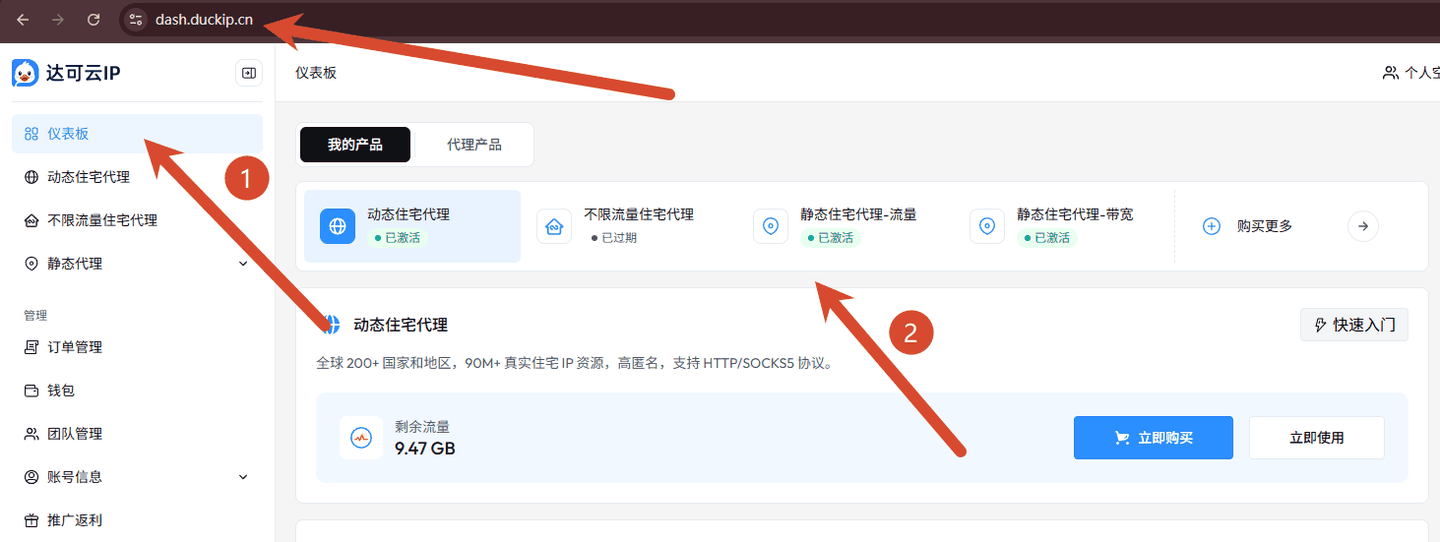
The left side contains the main navigation. The My Products cards on the right show each product's status and remaining quota.
Main navigation
Dashboard·Dynamic Residential Proxies·Unlimited Residential Proxies·Static Proxies·Order Management·Wallet·Team Management·Account Information·Referral Program
Common product workspace structure
Each product workspace follows a similar three-level structure:
| Level | Typical content | Purpose |
|---|---|---|
| Level 1: Main tabs | Proxy Usage, Statistics, Buy Plan, IP Management, and similar pages | Separates configuration, usage reporting, and plan management. |
| Dynamic residential Statistics | Main account and Sub-account views | The main-account view shows total product usage. The sub-account view attributes usage to individual authentication accounts. |
| Level 2: Authentication tabs | Username/Password Authentication, API Extraction, Authentication Account Management, Whitelist Management | Selects how the proxy will be configured in your application. |
| Level 3: Parameters and results | Proxy settings (region, lifetime, session, and others) on the left, generated proxy list on the right | Set the parameters, then select Generate Proxy or Generate Link. |
Compare the four product lines
Choose a product based on the required billing model and IP behavior. If you are unsure, start with a dynamic residential proxy to validate your workflow.
| Product | Billing | Authentication | Whitelist | Dashboard path |
|---|---|---|---|---|
| Dynamic residential proxy | Traffic (GB) | Username/password + API extraction | API extraction requires the upstream egress IP to be allowlisted | Dashboard → Dynamic Residential Proxy → Proxy Usage |
| Unlimited residential proxy | Bandwidth + concurrency + billing period, with unlimited traffic | Username/password + API extraction | Same requirements as dynamic residential proxies | Dashboard → Unlimited Residential Proxy → Proxy Usage |
| Static residential proxy · Traffic | Traffic per IP | Username/password only | Not required | Dashboard → Static Proxy → Static Residential Proxy - Traffic |
| Static residential proxy · Bandwidth | Bandwidth per IP | Username/password only | Not required | Dashboard → Static Proxy → Static Residential Proxy - Bandwidth |
How unlimited residential proxy plans are limited and billed An unlimited residential proxy plan combines bandwidth, concurrency, and a billing period. Traffic is unlimited during that period, while the purchased bandwidth and concurrency tier determines speed and the number of simultaneous connections. Renew the plan when the selected period ends. If peak demand exceeds the current capacity, upgrade the bandwidth or concurrency tier, choose a longer billing period, or contact support. See the billing and traffic section in the FAQ.
Find the proxy configuration page
For a dynamic residential proxy, go to Dashboard → Dynamic Residential Proxy → Proxy Usage. Use the tabs at the top to switch between Username/Password Authentication and API Extraction.
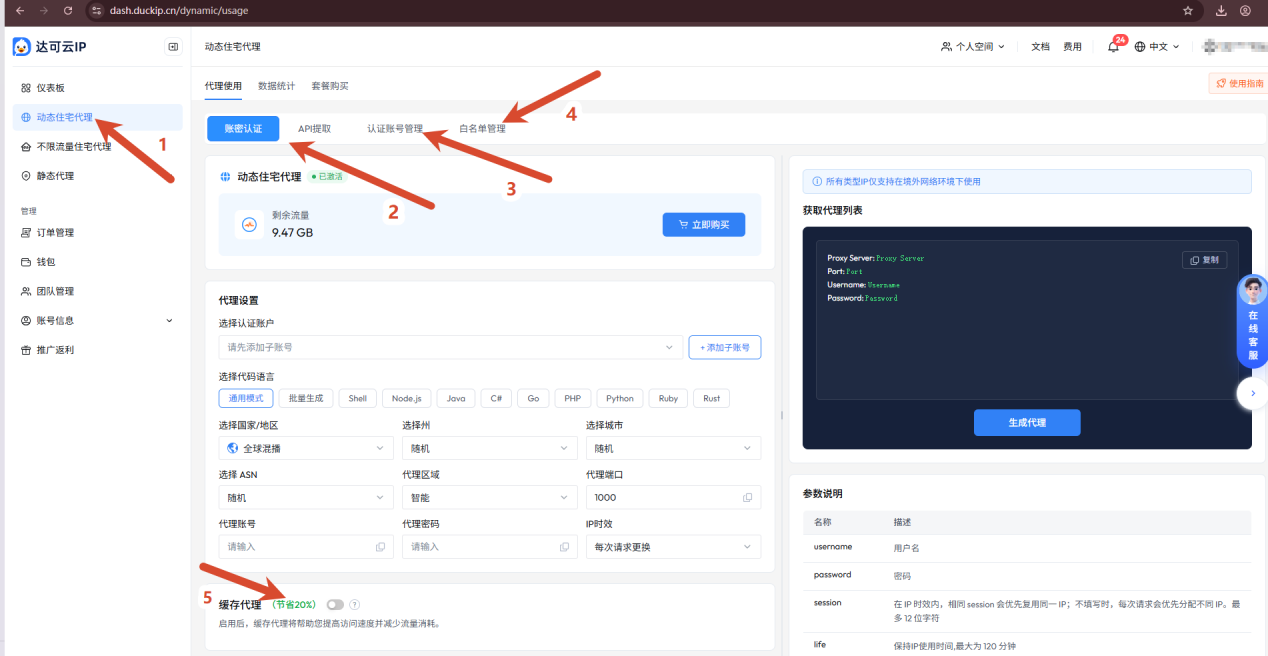
Callouts 1–5 show the product entry, Username/Password Authentication, API Extraction, Whitelist Management, and the Cache Proxy switch.
| Callout | Location | Function |
|---|---|---|
| ① | “Dynamic Residential Proxy” on the left | Switch product line. |
| ② | Username/Password Authentication tab | Generate a proxy using sub-account + password, compatible with antidetect browser and client software. |
| ③ | API Extraction tab | Generate an extraction URL containing an app_key for programmatic use or supported antidetect browsers. |
| ④ | Whitelist Management tab | Add the egress IP of the upstream node. API extraction and some other configurations require it. |
| ⑤ | Cache Proxy switch | Optionally reuse cached static resources to save traffic. It supports HTTP only and is incompatible with BitBrowser. See the Cache Proxy page. |
Only two protocols are supported Duckip supports HTTP and SOCKS5 only. Select one of these protocols in your antidetect browser, proxy manager, or system settings. SOCKS4, SSH, and other protocol options will not connect.
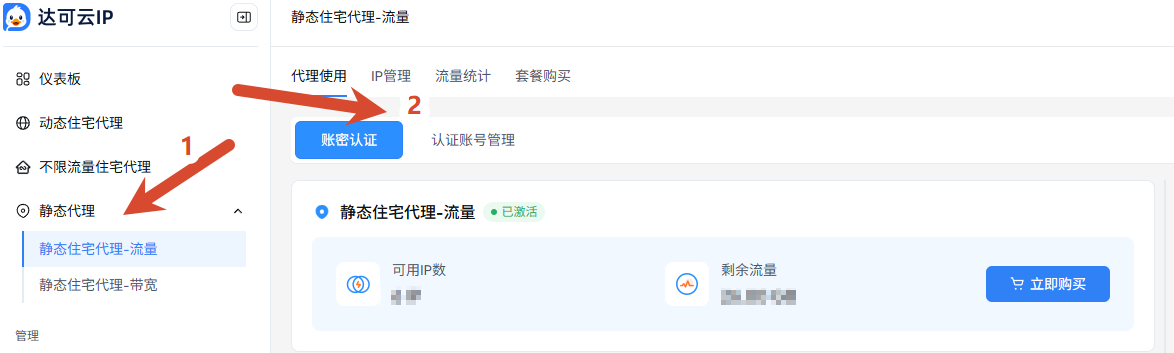
Both static proxy products provide Username/Password Authentication and Authentication Account Management, along with IP management and traffic statistics.
Review dynamic proxy usage
Open the Statistics tab to review dynamic residential proxy usage. The Main account view shows account-level usage across your plans. Each plan is metered and billed separately. The Sub-account view shows usage by authentication account.
| Statistical Dimensions | Statistical Objects | Typical Uses |
|---|---|---|
| Main account | Current usage for every plan under the account. Each plan is billed separately. | Check whether a plan has enough quota, estimate total cost, and decide whether to renew or upgrade. |
| Sub-accounts | Traffic and requests used by each authentication account. Each sub-account is bound to a specific plan and cannot be reused across plans. | Attribute usage to a business, team, or browser profile group and identify unusual consumption. |
| Time | Daily or billing-period usage trends, depending on the available dashboard views. | Identify changes in usage and spot unusual growth early. |
Order of troubleshooting usage anomalies ① Check whether total usage for the main account is abnormal → ② review sub-account usage and identify the largest consumer → ③ use the sub-account notes to locate the responsible business or environment.
What to do next
- Select authentication method
- Complete username/password authentication extraction
- Configure to antidetect browser
- FAQ
Next: Authentication method: username/password authentication vs API extraction | Return to general directory